
Scheduling
Scheduling allows you to control exactly when changedetection.io checks websites for changes. Set specific time windows, limit checks to business hours, schedule checks in different timezones, or combine with check intervals for precise control.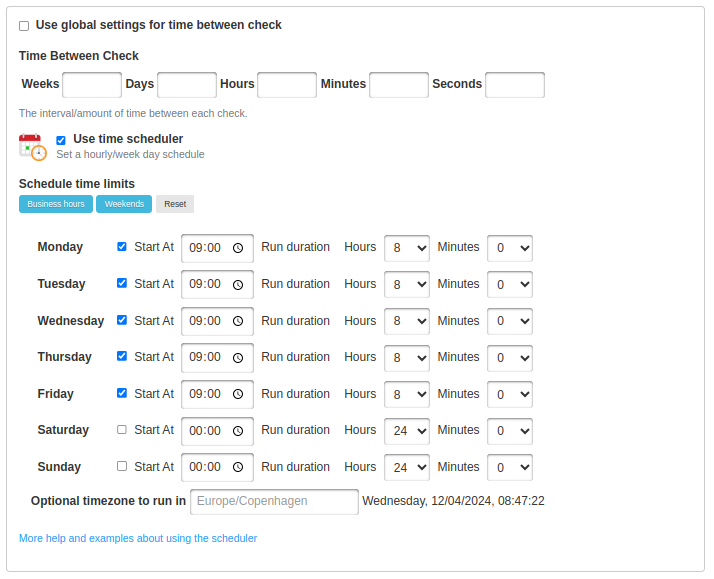
What is Scheduling?
The scheduler lets you define time windows when change detection should run. This is different from check intervals:Check Interval
How often to checkExample: Every 6 hours
Schedule
When checks can runExample: Only weekdays 9 AM - 5 PM
Scheduling + Intervals work together
- Check Interval: “Check every 30 minutes”
- Schedule: “Only run Monday-Friday, 9 AM to 5 PM EST”
Why Use Scheduling?
Business Hours Only
Monitor job postings or business sites only during work hours
Reduce Load
Avoid checking sites during maintenance windows or off-peak times
Timezone Matching
Check foreign sites during their business hours
Peak Time Monitoring
Focus checks during high-activity periods (e.g., sale hours)
Setting Up Scheduling
Global Scheduling (Default for All Watches)
1
Go to Settings
Navigate to Settings → Requests tab
2
Find Schedule Section
Scroll to “Time scheduler” section
3
Enable Scheduler
Check “Use time scheduler”
4
Configure Days and Times
Set start times and durations for each day of the week
5
Set Timezone (Optional)
Enter a timezone name (e.g.,
America/New_York, Europe/London)Per-Watch Scheduling
Override global scheduling for specific watches:1
Edit Watch
Click Edit on any watch
2
Uncheck 'Use Global Settings'
Uncheck “Use global settings for time between check and scheduler”
3
Configure Time Schedule
Scroll to “Time Schedule” section and configure days/times
Schedule Configuration
Day Settings
For each day of the week, configure:
Example configuration for Monday:
Quick Presets
Use the quick-select buttons for common schedules:- Business Hours
- Weekends
Automatically sets:
- Monday-Friday: 9:00 AM - 5:00 PM (8 hours)
- Saturday-Sunday: Disabled
Timezone Configuration
Setting Timezone
Setting Timezone
Field: “Optional timezone to run in”Enter a valid timezone name from the tz database:Common timezones:
America/New_York(Eastern Time)America/Chicago(Central Time)America/Los_Angeles(Pacific Time)Europe/London(GMT/BST)Europe/Paris(CET/CEST)Asia/Tokyo(JST)Australia/Sydney(AEST/AEDT)
How Scheduling Works
Schedule + Check Interval Example
Configuration:- Monday 9 AM: Check runs ✅
- Monday 10 AM: Check runs ✅
- Monday 11 AM: Check runs ✅
- …
- Monday 5 PM: Check runs ✅
- Monday 6 PM: Skipped ❌ (outside schedule)
- Tuesday 9 AM: Check runs ✅
- Wednesday: All checks skipped ❌
Outside Schedule Window
When a check is scheduled to run but falls outside the schedule window:- Check is skipped - No request is made
- Next check waits - Respects the check interval
- Resumes when window opens - First check runs at next scheduled window
Checks don’t queue upIf checks are skipped over the weekend, they don’t all run at once on Monday. The normal check interval resumes when the schedule window opens.
Common Scheduling Scenarios
Business Hours Only (Monday-Friday, 9-5)
Use case: Monitor job postings that only update during business hours Configuration:- Check interval: Every 30 minutes
- Result: Checks every 30 min, Mon-Fri 9 AM-5 PM EST
Weekend Sales Monitoring
Use case: Track weekend-only flash sales or promotions Configuration:- Check interval: Every 15 minutes
- Result: Checks every 15 min, weekends only
International Site Monitoring
Use case: Monitor a Japanese e-commerce site during their business hours Configuration:Peak Shopping Hours
Use case: Monitor product restocks during peak shopping times Configuration:Avoid Maintenance Windows
Use case: Don’t check a site that’s down for maintenance 2-4 AM daily Configuration:Advanced Scheduling Techniques
Combining Multiple Schedules with Tags
Create different schedules for different groups of watches:1
Create Tags
- Tag: “Business Hours Watches”
- Tag: “24/7 Critical Watches”
- Tag: “Weekend Only”
2
Configure Per-Watch Schedules
Apply different schedules to watches in each tag
3
Manage from Dashboard
Filter by tag to see which watches are active at different times
Reduced Frequency During Off-Hours
Scenario: Check every 15 minutes during business hours, every 2 hours overnight Solution: Create two watches for the same URL: Watch 1: “Product - Business Hours”Seasonal Schedules
For seasonal monitoring (e.g., holiday shopping, tax season):- Enable aggressive scheduling during the season
- Disable or reduce frequency outside the season
- Use tags to quickly enable/disable seasonal watches
Troubleshooting
Watch Not Running
Check is outside schedule window
Check is outside schedule window
Verify:
- Current time is within the scheduled window
- Day of week is enabled
- Timezone is correct (if set)
- Look at “Last check” time on watch
- If last check was before the schedule window, next check will wait until window opens
Duration is too short
Duration is too short
Problem: Duration doesn’t cover the check intervalExample:
- Check interval: Every 2 hours
- Schedule: Start 9:00, Duration 1 hour
Timezone mismatch
Timezone mismatch
Symptom: Schedule seems to run at wrong timesCause: Timezone setting doesn’t match intended timezoneFix:
- Verify timezone name is correct
- Check current time in that timezone
- Test with server’s local timezone first (leave timezone blank)
Schedule Not Saving
Error: “Invalid timezone name” Solution:- Use tz database names:
America/New_YorknotEST - Check spelling and capitalization
- Leave timezone blank to use server time
Unexpected Check Times
Problem: Checks run at unexpected times despite schedule Possible causes:-
Global vs per-watch conflict:
- Check if watch is using global settings
- Verify which schedule is actually active
-
Check interval too long:
- If interval > duration, only one check may run per window
-
Jitter enabled:
- Random jitter adds ± seconds to check times
- Check global settings for jitter configuration
Best Practices
Match check interval to schedule duration
Match check interval to schedule duration
Ensure your schedule duration is long enough for multiple checks.Good:
- Interval: 30 minutes
- Duration: 8 hours
- Result: 16 checks per day
- Interval: 2 hours
- Duration: 1 hour
- Result: Only 1 check per day
Use timezone for international sites
Use timezone for international sites
Always set timezone when monitoring sites in different regions.Example: Monitoring a UK site from a US server:Ensures checks run during UK business hours.
Test schedule before deploying
Test schedule before deploying
After setting a schedule:
- Note the current time in the configured timezone
- Verify it’s within the schedule window
- Click “Check now” to test
- Wait for next interval and confirm automatic check runs
Use global schedule as default
Use global schedule as default
Set a sensible global schedule (e.g., business hours) and override only for special cases.This makes managing large numbers of watches easier.
Document your schedules
Document your schedules
Use watch titles or tags to indicate schedules:
- “Product - Business Hours Only”
- Tag: “9-5-monitoring”
Scheduling vs. Other Features
Scheduling vs. Check Interval
Scheduling vs. Conditional Monitoring
Related Features
Check Intervals
Configure how often watches run
Conditional Monitoring
Filter notifications based on content conditions
Next Steps
1
Set Up Your First Schedule
Configure business hours scheduling for a test watch
2
Test Timezone Settings
Try monitoring an international site during their business hours
3
Optimize Check Frequency
Combine scheduling with check intervals for efficient monitoring