> ## Documentation Index
> Fetch the complete documentation index at: https://mintlify.com/dgtlmoon/changedetection.io/llms.txt
> Use this file to discover all available pages before exploring further.
# Visual Selector
> Point-and-click tool to select specific elements on a webpage for monitoring
# Visual Selector
The Visual Selector is a powerful point-and-click tool that makes it easy to monitor specific parts of a webpage without writing any code. Simply click on the elements you want to track, and changedetection.io will monitor only those sections for changes.
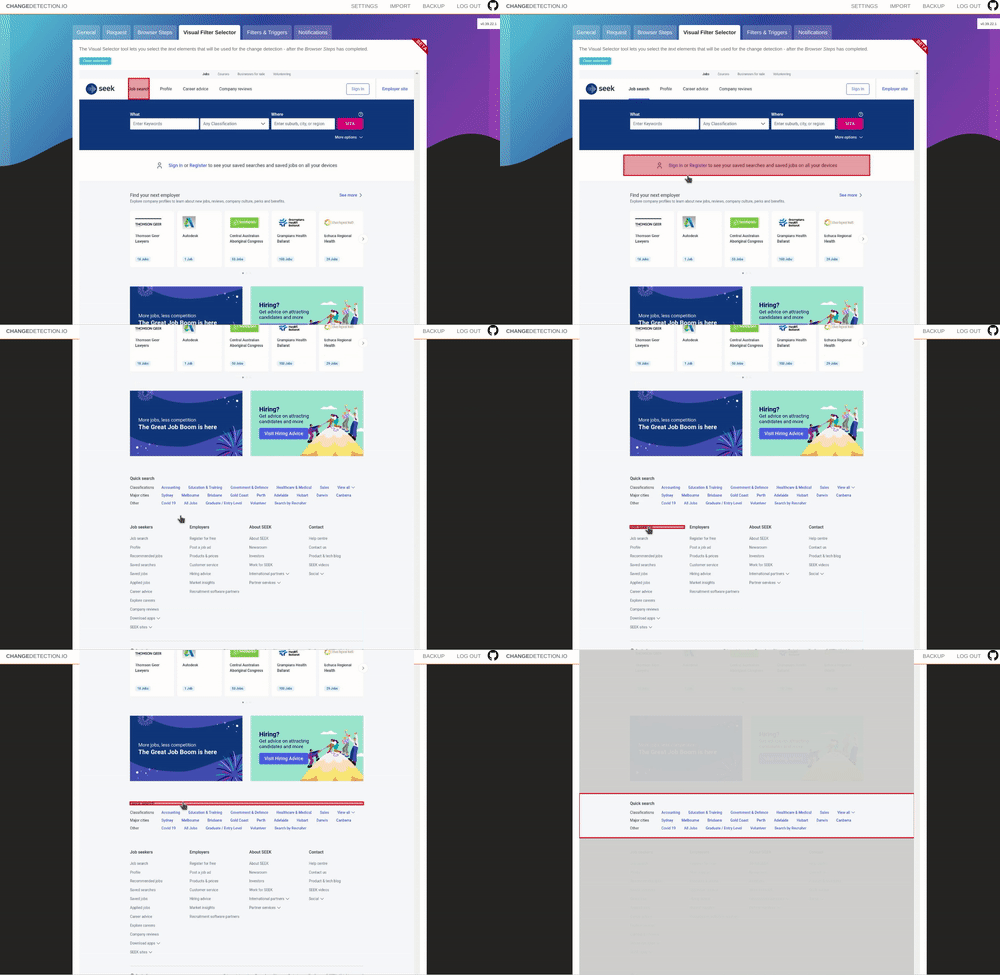 ## What is the Visual Selector?
The Visual Selector provides an interactive, visual way to target specific content on webpages. Instead of manually writing CSS selectors or XPath expressions, you can:
* Click directly on page elements to select them
* See a live preview of what content will be monitored
* Combine multiple selections to track different page sections
* Visually refine your selections in real-time
## Why Use the Visual Selector?
Point and click to select elements - no need to understand CSS or XPath
Monitor exactly what matters by selecting specific page sections
Ignore irrelevant content like ads, navigation, or footers
See exactly what content will be monitored before saving
## Prerequisites
The Visual Selector requires a browser-based fetcher to work:
**Chrome/Browser Fetch Method Required**
You need to use one of these fetch methods:
* Playwright (recommended)
* WebDriver/Chrome
The basic HTTP fetcher does not support Visual Selector.
### Enabling Browser Fetching
1. Go to **Settings** → **Requests**
2. Select **Chrome/Playwright** as your fetch method
3. Or enable it per-watch in the watch settings
## How to Use the Visual Selector
### Step 1: Create or Edit a Watch
1. Click **Add new watch** or edit an existing watch
2. Enter the URL you want to monitor
3. Make sure the fetch method is set to **Chrome/Playwright** (not "Basic fast Plaintext/HTTP fetcher")
### Step 2: Open the Visual Selector
1. Navigate to the **Visual Selector** tab in the watch settings
2. Click **Open Visual Selector** button
3. Wait for the page to load in the interactive viewer
### Step 3: Select Elements
Click on any text, image, or section you want to monitor. Selected elements will be highlighted.
The selector will show you the CSS/XPath selector being generated at the bottom of the screen.
Click additional elements to monitor multiple page sections. Each selection adds to your filter.
Click **Apply** to save your selections. The filter will be automatically added to your watch configuration.
### Step 4: Test and Save
1. Click **Check now** to test your watch
2. Review the **Preview** tab to confirm you're tracking the right content
3. Click **Save** to enable monitoring
## Best Practices
Select the smallest element that contains your target content. Selecting a large container div may include unwanted content like ads or navigation.
**Good:** Select the price element `$19.99`
**Bad:** Select the entire product card that includes images, reviews, and other changing content
After selecting elements, always click "Check now" to verify you're getting the expected content. Check the Preview tab to see what's being monitored.
Use Browser Steps to interact with the page first (login, accept cookies, etc.), then use Visual Selector to choose what to monitor.
**Example workflow:**
1. Use Browser Steps to log in and navigate to a dashboard
2. Use Visual Selector to pick the data you want to track
Some websites use dynamic IDs or classes that change on every page load. If your selector stops working, try selecting a parent element with a more stable selector.
## Common Use Cases
### Monitor Product Prices
Select just the price element on a product page to track price changes without false alerts from reviews or stock updates.
```
1. Open Visual Selector on product page
2. Click on the price (e.g., "$299.99")
3. Apply and save
```
### Track Specific Table Rows
Monitor a specific row in a data table, ignoring other rows.
```
1. Navigate to the table
2. Click on the specific cell or row you want to track
3. Apply the selection
```
### Monitor Article Content Only
Track blog post or article changes without monitoring comments, sidebars, or ads.
```
1. Select the article title
2. Select the article body content
3. Apply both selections
```
## Troubleshooting
**Visual Selector Not Available?**
If you don't see the Visual Selector tab:
* Ensure your fetch method is set to Chrome/Playwright
* Check that your browser fetcher is properly configured
* Verify that the Playwright/WebDriver service is running
### Element Not Selectable
If you can't click on an element:
* The element might be covered by another element (try clicking precisely)
* The page might not be fully loaded (wait a few seconds)
* Some interactive elements require Browser Steps to reveal them first
### Selection Keeps Breaking
If your selection stops working after a few checks:
* The website may use dynamic IDs/classes that change
* Try selecting a parent element with a more stable structure
* Use the manual CSS/XPath filter field instead for more control
### Selected Too Much Content
If your selection includes unwanted content:
* Click a more specific child element instead of a container
* Use the **Remove elements** field to exclude unwanted sections
* Manually refine the generated CSS selector
## Advanced Tips
**Combine with Filters**
After using Visual Selector, you can further refine what's monitored:
* Add **Ignore text** patterns to filter out noise
* Use **Extract text** with regex to pull specific values
* Apply **Trigger text** to only alert on specific keywords
### Working with the Generated Selector
The Visual Selector generates CSS selectors automatically. You can:
1. View the generated selector in the filter field
2. Manually edit it for more control
3. Switch between CSS and XPath if needed
### Multiple Element Selection
Select multiple unrelated elements by:
1. Click first element → generates selector
2. Click second element → adds to selector with comma
3. The result monitors all selected elements
## Related Features
Interact with pages before selecting elements
Refine what content triggers notifications
## Next Steps
Create a watch and try selecting elements on a webpage
Learn how to interact with pages before selecting content
Set up alerts when your selected content changes
This documentation is built and hosted on [Mintlify](https://mintlify.com), a developer documentation platform.
## What is the Visual Selector?
The Visual Selector provides an interactive, visual way to target specific content on webpages. Instead of manually writing CSS selectors or XPath expressions, you can:
* Click directly on page elements to select them
* See a live preview of what content will be monitored
* Combine multiple selections to track different page sections
* Visually refine your selections in real-time
## Why Use the Visual Selector?
Point and click to select elements - no need to understand CSS or XPath
Monitor exactly what matters by selecting specific page sections
Ignore irrelevant content like ads, navigation, or footers
See exactly what content will be monitored before saving
## Prerequisites
The Visual Selector requires a browser-based fetcher to work:
**Chrome/Browser Fetch Method Required**
You need to use one of these fetch methods:
* Playwright (recommended)
* WebDriver/Chrome
The basic HTTP fetcher does not support Visual Selector.
### Enabling Browser Fetching
1. Go to **Settings** → **Requests**
2. Select **Chrome/Playwright** as your fetch method
3. Or enable it per-watch in the watch settings
## How to Use the Visual Selector
### Step 1: Create or Edit a Watch
1. Click **Add new watch** or edit an existing watch
2. Enter the URL you want to monitor
3. Make sure the fetch method is set to **Chrome/Playwright** (not "Basic fast Plaintext/HTTP fetcher")
### Step 2: Open the Visual Selector
1. Navigate to the **Visual Selector** tab in the watch settings
2. Click **Open Visual Selector** button
3. Wait for the page to load in the interactive viewer
### Step 3: Select Elements
Click on any text, image, or section you want to monitor. Selected elements will be highlighted.
The selector will show you the CSS/XPath selector being generated at the bottom of the screen.
Click additional elements to monitor multiple page sections. Each selection adds to your filter.
Click **Apply** to save your selections. The filter will be automatically added to your watch configuration.
### Step 4: Test and Save
1. Click **Check now** to test your watch
2. Review the **Preview** tab to confirm you're tracking the right content
3. Click **Save** to enable monitoring
## Best Practices
Select the smallest element that contains your target content. Selecting a large container div may include unwanted content like ads or navigation.
**Good:** Select the price element `$19.99`
**Bad:** Select the entire product card that includes images, reviews, and other changing content
After selecting elements, always click "Check now" to verify you're getting the expected content. Check the Preview tab to see what's being monitored.
Use Browser Steps to interact with the page first (login, accept cookies, etc.), then use Visual Selector to choose what to monitor.
**Example workflow:**
1. Use Browser Steps to log in and navigate to a dashboard
2. Use Visual Selector to pick the data you want to track
Some websites use dynamic IDs or classes that change on every page load. If your selector stops working, try selecting a parent element with a more stable selector.
## Common Use Cases
### Monitor Product Prices
Select just the price element on a product page to track price changes without false alerts from reviews or stock updates.
```
1. Open Visual Selector on product page
2. Click on the price (e.g., "$299.99")
3. Apply and save
```
### Track Specific Table Rows
Monitor a specific row in a data table, ignoring other rows.
```
1. Navigate to the table
2. Click on the specific cell or row you want to track
3. Apply the selection
```
### Monitor Article Content Only
Track blog post or article changes without monitoring comments, sidebars, or ads.
```
1. Select the article title
2. Select the article body content
3. Apply both selections
```
## Troubleshooting
**Visual Selector Not Available?**
If you don't see the Visual Selector tab:
* Ensure your fetch method is set to Chrome/Playwright
* Check that your browser fetcher is properly configured
* Verify that the Playwright/WebDriver service is running
### Element Not Selectable
If you can't click on an element:
* The element might be covered by another element (try clicking precisely)
* The page might not be fully loaded (wait a few seconds)
* Some interactive elements require Browser Steps to reveal them first
### Selection Keeps Breaking
If your selection stops working after a few checks:
* The website may use dynamic IDs/classes that change
* Try selecting a parent element with a more stable structure
* Use the manual CSS/XPath filter field instead for more control
### Selected Too Much Content
If your selection includes unwanted content:
* Click a more specific child element instead of a container
* Use the **Remove elements** field to exclude unwanted sections
* Manually refine the generated CSS selector
## Advanced Tips
**Combine with Filters**
After using Visual Selector, you can further refine what's monitored:
* Add **Ignore text** patterns to filter out noise
* Use **Extract text** with regex to pull specific values
* Apply **Trigger text** to only alert on specific keywords
### Working with the Generated Selector
The Visual Selector generates CSS selectors automatically. You can:
1. View the generated selector in the filter field
2. Manually edit it for more control
3. Switch between CSS and XPath if needed
### Multiple Element Selection
Select multiple unrelated elements by:
1. Click first element → generates selector
2. Click second element → adds to selector with comma
3. The result monitors all selected elements
## Related Features
Interact with pages before selecting elements
Refine what content triggers notifications
## Next Steps
Create a watch and try selecting elements on a webpage
Learn how to interact with pages before selecting content
Set up alerts when your selected content changes
This documentation is built and hosted on [Mintlify](https://mintlify.com), a developer documentation platform.