> ## Documentation Index
> Fetch the complete documentation index at: https://mintlify.com/dgtlmoon/changedetection.io/llms.txt
> Use this file to discover all available pages before exploring further.
# Scheduling
> Control when watches run with flexible time-based scheduling and timezone support
# Scheduling
Scheduling allows you to control exactly when changedetection.io checks websites for changes. Set specific time windows, limit checks to business hours, schedule checks in different timezones, or combine with check intervals for precise control.
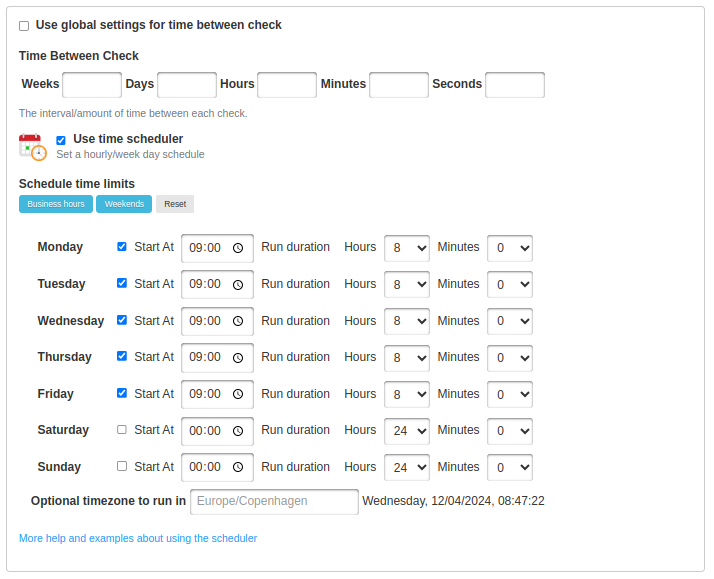 ## What is Scheduling?
The scheduler lets you define time windows when change detection should run. This is different from check intervals:
**How often** to check
Example: Every 6 hours
**When** checks can run
Example: Only weekdays 9 AM - 5 PM
**Scheduling + Intervals work together**
* **Check Interval:** "Check every 30 minutes"
* **Schedule:** "Only run Monday-Friday, 9 AM to 5 PM EST"
**Result:** Checks every 30 minutes, but only during weekday business hours in Eastern Time.
## Why Use Scheduling?
Monitor job postings or business sites only during work hours
Avoid checking sites during maintenance windows or off-peak times
Check foreign sites during their business hours
Focus checks during high-activity periods (e.g., sale hours)
## Setting Up Scheduling
### Global Scheduling (Default for All Watches)
Navigate to **Settings** → **Requests** tab
Scroll to **"Time scheduler"** section
Check **"Use time scheduler"**
Set start times and durations for each day of the week
Enter a timezone name (e.g., `America/New_York`, `Europe/London`)
### Per-Watch Scheduling
Override global scheduling for specific watches:
Click **Edit** on any watch
Uncheck **"Use global settings for time between check and scheduler"**
Scroll to **"Time Schedule"** section and configure days/times
## Schedule Configuration
### Day Settings
For each day of the week, configure:
| Setting | Description | Example |
| - | - | - |
| **Enabled** | Enable/disable checking on this day | ✅ Monday enabled |
| **Start At** | Time to begin checking | `09:00` |
| **Run duration (Hours)** | How many hours to check | `8` hours |
| **Run duration (Minutes)** | Additional minutes | `30` minutes |
**Example configuration for Monday:**
```
✅ Enabled
Start At: 09:00
Run duration: 8 hours, 30 minutes
Result: Checks run Monday from 9:00 AM to 5:30 PM
```
### Quick Presets
Use the quick-select buttons for common schedules:
Automatically sets:
* **Monday-Friday:** 9:00 AM - 5:00 PM (8 hours)
* **Saturday-Sunday:** Disabled
Perfect for monitoring job boards, business websites, or corporate pages.
Automatically sets:
* **Monday-Friday:** Disabled
* **Saturday-Sunday:** 12:00 AM - 12:00 AM (24 hours)
Perfect for monitoring weekend sales, events, or promotions.
### Timezone Configuration
**Field:** "Optional timezone to run in"
Enter a valid timezone name from the [tz database](https://en.wikipedia.org/wiki/List_of_tz_database_time_zones):
**Common timezones:**
* `America/New_York` (Eastern Time)
* `America/Chicago` (Central Time)
* `America/Los_Angeles` (Pacific Time)
* `Europe/London` (GMT/BST)
* `Europe/Paris` (CET/CEST)
* `Asia/Tokyo` (JST)
* `Australia/Sydney` (AEST/AEDT)
**If not set:** Uses the server's local timezone.
**Timezone format matters**
Use the full tz database name:
* ✅ `America/New_York`
* ❌ `EST` (not accepted)
* ❌ `Eastern Time` (not accepted)
Incorrect timezone names will cause validation errors.
## How Scheduling Works
### Schedule + Check Interval Example
**Configuration:**
```
Check Interval: Every 1 hour
Schedule:
Monday: 09:00 - 17:00 (8 hours)
Tuesday: 09:00 - 17:00 (8 hours)
Wednesday-Sunday: Disabled
```
**Behavior:**
* Monday 9 AM: Check runs ✅
* Monday 10 AM: Check runs ✅
* Monday 11 AM: Check runs ✅
* ...
* Monday 5 PM: Check runs ✅
* Monday 6 PM: **Skipped** ❌ (outside schedule)
* Tuesday 9 AM: Check runs ✅
* Wednesday: **All checks skipped** ❌
### Outside Schedule Window
When a check is scheduled to run but falls outside the schedule window:
1. **Check is skipped** - No request is made
2. **Next check waits** - Respects the check interval
3. **Resumes when window opens** - First check runs at next scheduled window
**Checks don't queue up**
If checks are skipped over the weekend, they don't all run at once on Monday. The normal check interval resumes when the schedule window opens.
## Common Scheduling Scenarios
### Business Hours Only (Monday-Friday, 9-5)
**Use case:** Monitor job postings that only update during business hours
**Configuration:**
```
✅ Use time scheduler
Monday-Friday:
✅ Enabled
Start At: 09:00
Duration: 8 hours
Saturday-Sunday:
❌ Disabled
Timezone: America/New_York
```
**Combine with:**
* Check interval: Every 30 minutes
* Result: Checks every 30 min, Mon-Fri 9 AM-5 PM EST
### Weekend Sales Monitoring
**Use case:** Track weekend-only flash sales or promotions
**Configuration:**
```
✅ Use time scheduler
Monday-Friday:
❌ Disabled
Saturday:
✅ Enabled
Start At: 00:00
Duration: 24 hours
Sunday:
✅ Enabled
Start At: 00:00
Duration: 24 hours
```
**Combine with:**
* Check interval: Every 15 minutes
* Result: Checks every 15 min, weekends only
### International Site Monitoring
**Use case:** Monitor a Japanese e-commerce site during their business hours
**Configuration:**
```
✅ Use time scheduler
Monday-Friday:
✅ Enabled
Start At: 09:00
Duration: 10 hours
Timezone: Asia/Tokyo
```
**Result:** Checks run 9 AM - 7 PM Japan time, regardless of your server's location.
### Peak Shopping Hours
**Use case:** Monitor product restocks during peak shopping times
**Configuration:**
```
✅ Use time scheduler
Every day:
✅ Enabled
Start At: 08:00
Duration: 4 hours
AND
Every day:
Start At: 17:00
Duration: 5 hours
```
**Note:** You can only set one time window per day, so you'd need separate watches for morning and evening windows, or use a longer duration (8 AM - 10 PM).
### Avoid Maintenance Windows
**Use case:** Don't check a site that's down for maintenance 2-4 AM daily
**Configuration:**
```
✅ Use time scheduler
Every day:
✅ Enabled
Start At: 04:00
Duration: 22 hours
```
**Result:** Checks skip 2 AM - 4 AM, run rest of the day.
## Advanced Scheduling Techniques
### Combining Multiple Schedules with Tags
Create different schedules for different groups of watches:
* Tag: "Business Hours Watches"
* Tag: "24/7 Critical Watches"
* Tag: "Weekend Only"
Apply different schedules to watches in each tag
Filter by tag to see which watches are active at different times
### Reduced Frequency During Off-Hours
**Scenario:** Check every 15 minutes during business hours, every 2 hours overnight
**Solution:** Create two watches for the same URL:
**Watch 1: "Product - Business Hours"**
```
Check Interval: Every 15 minutes
Schedule: Mon-Fri, 9 AM - 5 PM
```
**Watch 2: "Product - Off-Hours"**
```
Check Interval: Every 2 hours
Schedule: Mon-Fri, 5 PM - 9 AM + Weekends
```
**Mute one watch's notifications**
To avoid duplicate notifications, mute one of the watches and only receive alerts from the other.
### Seasonal Schedules
For seasonal monitoring (e.g., holiday shopping, tax season):
1. Enable aggressive scheduling during the season
2. Disable or reduce frequency outside the season
3. Use tags to quickly enable/disable seasonal watches
## Troubleshooting
### Watch Not Running
**Verify:**
* Current time is within the scheduled window
* Day of week is enabled
* Timezone is correct (if set)
**Check:**
* Look at "Last check" time on watch
* If last check was before the schedule window, next check will wait until window opens
**Problem:** Duration doesn't cover the check interval
**Example:**
* Check interval: Every 2 hours
* Schedule: Start 9:00, Duration 1 hour
**Result:** Only one check at 9 AM, next check at 11 AM is outside window
**Solution:** Increase duration to at least match check interval, ideally longer
**Symptom:** Schedule seems to run at wrong times
**Cause:** Timezone setting doesn't match intended timezone
**Fix:**
* Verify timezone name is correct
* Check current time in that timezone
* Test with server's local timezone first (leave timezone blank)
### Schedule Not Saving
**Error:** "Invalid timezone name"
**Solution:**
* Use tz database names: `America/New_York` not `EST`
* Check spelling and capitalization
* Leave timezone blank to use server time
### Unexpected Check Times
**Problem:** Checks run at unexpected times despite schedule
**Possible causes:**
1. **Global vs per-watch conflict:**
* Check if watch is using global settings
* Verify which schedule is actually active
2. **Check interval too long:**
* If interval > duration, only one check may run per window
3. **Jitter enabled:**
* Random jitter adds ± seconds to check times
* Check global settings for jitter configuration
## Best Practices
Ensure your schedule duration is long enough for multiple checks.
**Good:**
* Interval: 30 minutes
* Duration: 8 hours
* Result: 16 checks per day
**Bad:**
* Interval: 2 hours
* Duration: 1 hour
* Result: Only 1 check per day
Always set timezone when monitoring sites in different regions.
**Example:** Monitoring a UK site from a US server:
```
Timezone: Europe/London
Schedule: Mon-Fri, 9:00 AM - 5:00 PM
```
Ensures checks run during UK business hours.
After setting a schedule:
1. Note the current time in the configured timezone
2. Verify it's within the schedule window
3. Click "Check now" to test
4. Wait for next interval and confirm automatic check runs
Set a sensible global schedule (e.g., business hours) and override only for special cases.
This makes managing large numbers of watches easier.
Use watch titles or tags to indicate schedules:
* "Product - Business Hours Only"
* Tag: "9-5-monitoring"
Makes it easier to understand which watches run when.
## Scheduling vs. Other Features
### Scheduling vs. Check Interval
| Feature | Purpose | Example |
| - | - | - |
| **Check Interval** | How often to check | Every 30 minutes |
| **Scheduling** | When checks can run | Only weekdays 9-5 |
| **Combined** | Precise control | Every 30 min, weekdays 9-5 |
### Scheduling vs. Conditional Monitoring
| Feature | When to Use |
| - | - |
| **Scheduling** | Control when checks **run** based on time/day |
| **Conditional Monitoring** | Control when **notifications send** based on content |
| **Both** | "Check during business hours, notify only if price \< \$50" |
## Related Features
Configure how often watches run
Filter notifications based on content conditions
## Next Steps
Configure business hours scheduling for a test watch
Try monitoring an international site during their business hours
Combine scheduling with check intervals for efficient monitoring
This documentation is built and hosted on [Mintlify](https://mintlify.com), a developer documentation platform.
## What is Scheduling?
The scheduler lets you define time windows when change detection should run. This is different from check intervals:
**How often** to check
Example: Every 6 hours
**When** checks can run
Example: Only weekdays 9 AM - 5 PM
**Scheduling + Intervals work together**
* **Check Interval:** "Check every 30 minutes"
* **Schedule:** "Only run Monday-Friday, 9 AM to 5 PM EST"
**Result:** Checks every 30 minutes, but only during weekday business hours in Eastern Time.
## Why Use Scheduling?
Monitor job postings or business sites only during work hours
Avoid checking sites during maintenance windows or off-peak times
Check foreign sites during their business hours
Focus checks during high-activity periods (e.g., sale hours)
## Setting Up Scheduling
### Global Scheduling (Default for All Watches)
Navigate to **Settings** → **Requests** tab
Scroll to **"Time scheduler"** section
Check **"Use time scheduler"**
Set start times and durations for each day of the week
Enter a timezone name (e.g., `America/New_York`, `Europe/London`)
### Per-Watch Scheduling
Override global scheduling for specific watches:
Click **Edit** on any watch
Uncheck **"Use global settings for time between check and scheduler"**
Scroll to **"Time Schedule"** section and configure days/times
## Schedule Configuration
### Day Settings
For each day of the week, configure:
| Setting | Description | Example |
| - | - | - |
| **Enabled** | Enable/disable checking on this day | ✅ Monday enabled |
| **Start At** | Time to begin checking | `09:00` |
| **Run duration (Hours)** | How many hours to check | `8` hours |
| **Run duration (Minutes)** | Additional minutes | `30` minutes |
**Example configuration for Monday:**
```
✅ Enabled
Start At: 09:00
Run duration: 8 hours, 30 minutes
Result: Checks run Monday from 9:00 AM to 5:30 PM
```
### Quick Presets
Use the quick-select buttons for common schedules:
Automatically sets:
* **Monday-Friday:** 9:00 AM - 5:00 PM (8 hours)
* **Saturday-Sunday:** Disabled
Perfect for monitoring job boards, business websites, or corporate pages.
Automatically sets:
* **Monday-Friday:** Disabled
* **Saturday-Sunday:** 12:00 AM - 12:00 AM (24 hours)
Perfect for monitoring weekend sales, events, or promotions.
### Timezone Configuration
**Field:** "Optional timezone to run in"
Enter a valid timezone name from the [tz database](https://en.wikipedia.org/wiki/List_of_tz_database_time_zones):
**Common timezones:**
* `America/New_York` (Eastern Time)
* `America/Chicago` (Central Time)
* `America/Los_Angeles` (Pacific Time)
* `Europe/London` (GMT/BST)
* `Europe/Paris` (CET/CEST)
* `Asia/Tokyo` (JST)
* `Australia/Sydney` (AEST/AEDT)
**If not set:** Uses the server's local timezone.
**Timezone format matters**
Use the full tz database name:
* ✅ `America/New_York`
* ❌ `EST` (not accepted)
* ❌ `Eastern Time` (not accepted)
Incorrect timezone names will cause validation errors.
## How Scheduling Works
### Schedule + Check Interval Example
**Configuration:**
```
Check Interval: Every 1 hour
Schedule:
Monday: 09:00 - 17:00 (8 hours)
Tuesday: 09:00 - 17:00 (8 hours)
Wednesday-Sunday: Disabled
```
**Behavior:**
* Monday 9 AM: Check runs ✅
* Monday 10 AM: Check runs ✅
* Monday 11 AM: Check runs ✅
* ...
* Monday 5 PM: Check runs ✅
* Monday 6 PM: **Skipped** ❌ (outside schedule)
* Tuesday 9 AM: Check runs ✅
* Wednesday: **All checks skipped** ❌
### Outside Schedule Window
When a check is scheduled to run but falls outside the schedule window:
1. **Check is skipped** - No request is made
2. **Next check waits** - Respects the check interval
3. **Resumes when window opens** - First check runs at next scheduled window
**Checks don't queue up**
If checks are skipped over the weekend, they don't all run at once on Monday. The normal check interval resumes when the schedule window opens.
## Common Scheduling Scenarios
### Business Hours Only (Monday-Friday, 9-5)
**Use case:** Monitor job postings that only update during business hours
**Configuration:**
```
✅ Use time scheduler
Monday-Friday:
✅ Enabled
Start At: 09:00
Duration: 8 hours
Saturday-Sunday:
❌ Disabled
Timezone: America/New_York
```
**Combine with:**
* Check interval: Every 30 minutes
* Result: Checks every 30 min, Mon-Fri 9 AM-5 PM EST
### Weekend Sales Monitoring
**Use case:** Track weekend-only flash sales or promotions
**Configuration:**
```
✅ Use time scheduler
Monday-Friday:
❌ Disabled
Saturday:
✅ Enabled
Start At: 00:00
Duration: 24 hours
Sunday:
✅ Enabled
Start At: 00:00
Duration: 24 hours
```
**Combine with:**
* Check interval: Every 15 minutes
* Result: Checks every 15 min, weekends only
### International Site Monitoring
**Use case:** Monitor a Japanese e-commerce site during their business hours
**Configuration:**
```
✅ Use time scheduler
Monday-Friday:
✅ Enabled
Start At: 09:00
Duration: 10 hours
Timezone: Asia/Tokyo
```
**Result:** Checks run 9 AM - 7 PM Japan time, regardless of your server's location.
### Peak Shopping Hours
**Use case:** Monitor product restocks during peak shopping times
**Configuration:**
```
✅ Use time scheduler
Every day:
✅ Enabled
Start At: 08:00
Duration: 4 hours
AND
Every day:
Start At: 17:00
Duration: 5 hours
```
**Note:** You can only set one time window per day, so you'd need separate watches for morning and evening windows, or use a longer duration (8 AM - 10 PM).
### Avoid Maintenance Windows
**Use case:** Don't check a site that's down for maintenance 2-4 AM daily
**Configuration:**
```
✅ Use time scheduler
Every day:
✅ Enabled
Start At: 04:00
Duration: 22 hours
```
**Result:** Checks skip 2 AM - 4 AM, run rest of the day.
## Advanced Scheduling Techniques
### Combining Multiple Schedules with Tags
Create different schedules for different groups of watches:
* Tag: "Business Hours Watches"
* Tag: "24/7 Critical Watches"
* Tag: "Weekend Only"
Apply different schedules to watches in each tag
Filter by tag to see which watches are active at different times
### Reduced Frequency During Off-Hours
**Scenario:** Check every 15 minutes during business hours, every 2 hours overnight
**Solution:** Create two watches for the same URL:
**Watch 1: "Product - Business Hours"**
```
Check Interval: Every 15 minutes
Schedule: Mon-Fri, 9 AM - 5 PM
```
**Watch 2: "Product - Off-Hours"**
```
Check Interval: Every 2 hours
Schedule: Mon-Fri, 5 PM - 9 AM + Weekends
```
**Mute one watch's notifications**
To avoid duplicate notifications, mute one of the watches and only receive alerts from the other.
### Seasonal Schedules
For seasonal monitoring (e.g., holiday shopping, tax season):
1. Enable aggressive scheduling during the season
2. Disable or reduce frequency outside the season
3. Use tags to quickly enable/disable seasonal watches
## Troubleshooting
### Watch Not Running
**Verify:**
* Current time is within the scheduled window
* Day of week is enabled
* Timezone is correct (if set)
**Check:**
* Look at "Last check" time on watch
* If last check was before the schedule window, next check will wait until window opens
**Problem:** Duration doesn't cover the check interval
**Example:**
* Check interval: Every 2 hours
* Schedule: Start 9:00, Duration 1 hour
**Result:** Only one check at 9 AM, next check at 11 AM is outside window
**Solution:** Increase duration to at least match check interval, ideally longer
**Symptom:** Schedule seems to run at wrong times
**Cause:** Timezone setting doesn't match intended timezone
**Fix:**
* Verify timezone name is correct
* Check current time in that timezone
* Test with server's local timezone first (leave timezone blank)
### Schedule Not Saving
**Error:** "Invalid timezone name"
**Solution:**
* Use tz database names: `America/New_York` not `EST`
* Check spelling and capitalization
* Leave timezone blank to use server time
### Unexpected Check Times
**Problem:** Checks run at unexpected times despite schedule
**Possible causes:**
1. **Global vs per-watch conflict:**
* Check if watch is using global settings
* Verify which schedule is actually active
2. **Check interval too long:**
* If interval > duration, only one check may run per window
3. **Jitter enabled:**
* Random jitter adds ± seconds to check times
* Check global settings for jitter configuration
## Best Practices
Ensure your schedule duration is long enough for multiple checks.
**Good:**
* Interval: 30 minutes
* Duration: 8 hours
* Result: 16 checks per day
**Bad:**
* Interval: 2 hours
* Duration: 1 hour
* Result: Only 1 check per day
Always set timezone when monitoring sites in different regions.
**Example:** Monitoring a UK site from a US server:
```
Timezone: Europe/London
Schedule: Mon-Fri, 9:00 AM - 5:00 PM
```
Ensures checks run during UK business hours.
After setting a schedule:
1. Note the current time in the configured timezone
2. Verify it's within the schedule window
3. Click "Check now" to test
4. Wait for next interval and confirm automatic check runs
Set a sensible global schedule (e.g., business hours) and override only for special cases.
This makes managing large numbers of watches easier.
Use watch titles or tags to indicate schedules:
* "Product - Business Hours Only"
* Tag: "9-5-monitoring"
Makes it easier to understand which watches run when.
## Scheduling vs. Other Features
### Scheduling vs. Check Interval
| Feature | Purpose | Example |
| - | - | - |
| **Check Interval** | How often to check | Every 30 minutes |
| **Scheduling** | When checks can run | Only weekdays 9-5 |
| **Combined** | Precise control | Every 30 min, weekdays 9-5 |
### Scheduling vs. Conditional Monitoring
| Feature | When to Use |
| - | - |
| **Scheduling** | Control when checks **run** based on time/day |
| **Conditional Monitoring** | Control when **notifications send** based on content |
| **Both** | "Check during business hours, notify only if price \< \$50" |
## Related Features
Configure how often watches run
Filter notifications based on content conditions
## Next Steps
Configure business hours scheduling for a test watch
Try monitoring an international site during their business hours
Combine scheduling with check intervals for efficient monitoring
This documentation is built and hosted on [Mintlify](https://mintlify.com), a developer documentation platform.