> ## Documentation Index
> Fetch the complete documentation index at: https://mintlify.com/dgtlmoon/changedetection.io/llms.txt
> Use this file to discover all available pages before exploring further.

# Restock & Price Monitoring

> Track product availability and price changes on e-commerce websites

# Restock & Price Monitoring

The Restock & Price Detection feature is specifically designed for monitoring single product pages. It automatically detects when products come back in stock and tracks price changes, making it perfect for e-commerce monitoring, deal hunting, and inventory tracking.
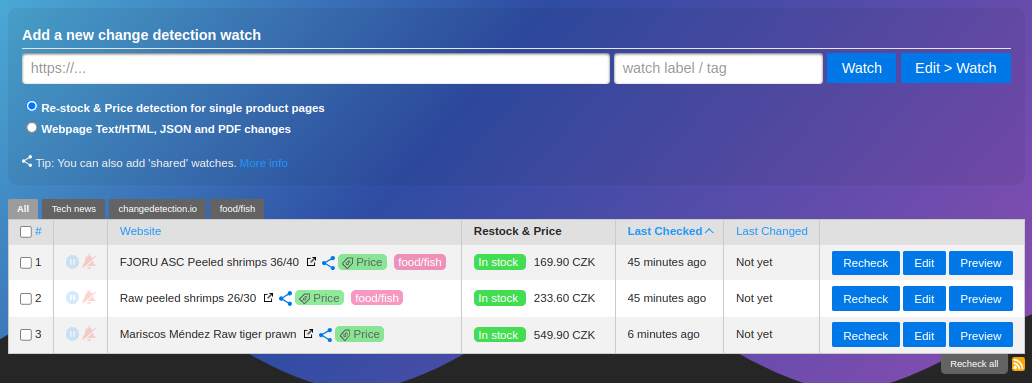
<img src="https://raw.githubusercontent.com/dgtlmoon/changedetection.io/master/docs/restock-overview.png" alt="Restock monitoring dashboard" />

## What is Restock Monitoring?

Restock monitoring automatically extracts product availability and pricing information from e-commerce websites using structured metadata (JSON-LD, microdata, OpenGraph). It provides:

* **Automatic price detection** from product pages
* **Stock status tracking** (In Stock, Out of Stock, Pre-sale, etc.)
* **Price change alerts** with customizable thresholds
* **Currency detection** from product metadata
* **Visual price history** in the dashboard

<Info>
  **How it works**

  changedetection.io reads structured product data embedded in the HTML:

  * JSON-LD schema markup (`<script type="application/ld+json">`)
  * Microdata attributes (`itemprop="price"`, `itemprop="availability"`)
  * OpenGraph meta tags (`og:price:amount`, `og:availability`)

  Most major e-commerce platforms include this data automatically.
</Info>

## When to Use Restock Monitoring

<CardGroup cols={2}>
  <Card title="Product Restocks" icon="box">
    Get notified immediately when out-of-stock items come back
  </Card>

  <Card title="Price Drops" icon="arrow-trend-down">
    Track price changes and get alerted when prices drop
  </Card>

  <Card title="Deal Hunting" icon="tags">
    Monitor multiple products and catch the best deals
  </Card>

  <Card title="Inventory Management" icon="warehouse">
    Track competitor pricing and availability
  </Card>
</CardGroup>

## Enabling Restock Monitoring

### Step 1: Select the Processor

<Steps>
  <Step title="Create or Edit Watch">
    When adding a URL, or in the watch edit page
  </Step>

  <Step title="Choose Processor">
    Under **"Processor - What do you want to achieve?"**, select:

    **"Re-stock & Price detection for pages with a SINGLE product"**
  </Step>

  <Step title="Enter Product URL">
    Paste the URL of the product page you want to monitor
  </Step>
</Steps>

<Warning>
  **Single Product Pages Only**

  This feature is designed for individual product pages, not:

  * Category pages with multiple products
  * Search results pages
  * Shopping cart pages

  For multi-product pages, use the standard "Text & JSON change detection" processor.
</Warning>

### Step 2: Configure Restock Settings

Navigate to the **Restock & Price Detection** tab to configure monitoring options.

<img src="https://raw.githubusercontent.com/dgtlmoon/changedetection.io/master/docs/restock-settings.png" alt="Restock settings configuration" />

## Configuration Options

### Re-stock Detection Mode

Choose how you want to be notified about stock changes:

<Tabs>
  <Tab title="In Stock Only (Default)">
    **Best for:** Restock alerts

    Triggers notifications only when:

    * Product goes from **Out of Stock → In Stock**

    Ignores:

    * In Stock → Out of Stock changes
    * In Stock → In Stock (no change)

    **Use case:** "Notify me when this sold-out item comes back in stock"
  </Tab>

  <Tab title="Any Availability Changes">
    **Best for:** Full inventory tracking

    Triggers notifications for:

    * Out of Stock → In Stock
    * In Stock → Out of Stock
    * Any availability status change

    **Use case:** "I want to track all stock status changes"
  </Tab>

  <Tab title="Off">
    **Best for:** Price-only monitoring

    Disables stock monitoring completely. Only track price changes.

    **Use case:** "Only notify me about price changes, ignore stock status"
  </Tab>
</Tabs>

### Price Change Tracking

#### Follow Price Changes

<Accordion title="Enable/Disable Price Monitoring">
  **Checkbox:** "Follow price changes"

  * ✅ **Enabled (Default):** Get notified when prices change
  * ❌ **Disabled:** Ignore price changes, only monitor stock status

  When enabled, you can set additional price thresholds below.
</Accordion>

#### Price Thresholds

Set minimum and maximum price limits to filter notifications:

<CodeGroup>
  ```text Below Price Threshold theme={null}
  "Notify me when the price drops BELOW $50"

  Below price to trigger notification: 50

  Only triggers when: Current Price < $50
  ```

  ```text Above Price Threshold   theme={null}
  "Notify me when the price goes ABOVE $100"

  Above price to trigger notification: 100

  Only triggers when: Current Price > $100
  ```

  ```text Price Range theme={null}
  "Only notify me when price is between $20 and $50"

  Below price: 50
  Above price: 20

  Triggers when: $20 < Price OR Price > $50
  ```
</CodeGroup>

<Info>
  **How thresholds work**

  * **Below price:** Triggers when price drops below this value
  * **Above price:** Triggers when price rises above this value
  * **Both set:** Triggers when price goes outside the range
  * **Neither set:** Triggers on any price change
</Info>

#### Percentage Change Threshold

Ignore small price fluctuations by setting a percentage threshold:

```
Threshold in % for price changes: 5

Original price: $100

Will NOT trigger if price changes to:
- $98 (2% change)
- $103 (3% change)

WILL trigger if price changes to:
- $94 (6% change)  
- $106 (6% change)
```

<Tip>
  **Use percentage thresholds to reduce noise**

  * Set to **2-5%** for expensive items (to ignore minor fluctuations)
  * Set to **0%** or leave empty for sensitive price tracking
  * Percentage is calculated from the **original price** (first detection)
</Tip>

## How Restock Monitoring Works

### Automatic Data Extraction

changedetection.io uses a multi-step approach to extract product data:

<Steps>
  <Step title="Parse Structured Data">
    Extracts JSON-LD, microdata, and OpenGraph metadata from the HTML
  </Step>

  <Step title="Find Price & Availability">
    Uses JSONPath to locate price and stock status in the metadata
  </Step>

  <Step title="Fallback to Page Scraping">
    If metadata is missing, scans page text for stock keywords like:

    * "Out of Stock"
    * "Add to Cart"
    * "Sold Out"
    * "Pre-order"
  </Step>

  <Step title="Store & Compare">
    Saves price and stock status, compares on each check
  </Step>
</Steps>

### Supported Availability States

The following stock statuses are recognized as **In Stock**:

* `InStock`
* `InStoreOnly`
* `LimitedAvailability`
* `OnlineOnly`
* `PreSale` / `PreOrder`

All other statuses (including `OutOfStock`, `Discontinued`, `SoldOut`) are treated as **Out of Stock**.

## Real-World Use Cases

### Get Notified When Sold-Out Item Restocks

<CodeGroup>
  ```text Configuration theme={null}
  Processor: Re-stock & Price detection
  Re-stock detection: In Stock only
  Follow price changes: ❌ Disabled

  Result: Notification only when item comes back in stock
  ```
</CodeGroup>

**Example:** Monitor a sold-out graphics card and get alerted the moment it's available again.

### Track Price Drops Below \$100

<CodeGroup>
  ```text Configuration   theme={null}
  Processor: Re-stock & Price detection
  Re-stock detection: Off
  Follow price changes: ✅ Enabled
  Below price to trigger: 100

  Result: Notification when price drops below $100
  ```
</CodeGroup>

**Example:** Wait for a laptop to drop below your budget before buying.

### Monitor Competitor Pricing

<CodeGroup>
  ```text Configuration theme={null}
  Processor: Re-stock & Price detection  
  Re-stock detection: Any availability changes
  Follow price changes: ✅ Enabled
  Percentage threshold: 2

  Result: Track all stock and price changes > 2%
  ```
</CodeGroup>

**Example:** Keep tabs on competitor pricing and stock levels for your own products.

### Alert on Price Increases

<CodeGroup>
  ```text Configuration theme={null}
  Processor: Re-stock & Price detection
  Re-stock detection: Off  
  Follow price changes: ✅ Enabled
  Above price to trigger: 200

  Result: Notification when price exceeds $200
  ```
</CodeGroup>

**Example:** Get alerted if a subscription service increases prices.

## Dashboard Integration

When using restock monitoring, the dashboard displays:

* **Current price** in the watch list
* **Stock status** badge (In Stock / Out of Stock)
* **Price history** graph (if multiple checks recorded)
* **Original price** (first detected price)
* **Currency** automatically detected

<img src="https://raw.githubusercontent.com/dgtlmoon/changedetection.io/master/docs/restock-overview.png" alt="Restock data in dashboard" />

## Troubleshooting

### No Price or Stock Data Detected

<AccordionGroup>
  <Accordion title="Website doesn't include metadata">
    **Solution:** The website may not include structured product data.

    **Try:**

    * Switch to "Text & JSON change detection" processor
    * Use Visual Selector to select price and stock elements manually
    * Use CSS/XPath filters to extract price with regex
  </Accordion>

  <Accordion title="Multiple prices found">
    **Error:** "More than one price detected, this plugin is only for product pages with ONE product"

    **Cause:** The page contains multiple products or price variations.

    **Solution:**

    * Ensure you're monitoring a single product page, not a category
    * Some sites show multiple prices (e.g., different sizes/colors)
    * Switch to standard text monitoring and use filters to target specific price
  </Accordion>

  <Accordion title="Price detected but not stock status">
    **Cause:** Website includes price metadata but not availability.

    **Behavior:**

    * Price changes will be tracked
    * Stock status falls back to page text scraping
    * May see "Possibly in stock" if no clear stock indicators found

    **Tip:** Use browser/Chrome fetch method for better stock detection.
  </Accordion>
</AccordionGroup>

### False Positives

**Problem:** Getting notifications for minor price changes

**Solution:** Set a percentage threshold:

```
Threshold in % for price changes: 5
```

This ignores changes less than 5% of the original price.

### Stock Status Not Updating

**Causes:**

* Website uses JavaScript to load stock status
* Stock data is behind authentication/login
* Stock information in metadata is incorrect

**Solutions:**

* Switch fetch method to **Chrome/Playwright**
* Use Browser Steps to log in first
* Enable "Wait for seconds" in watch settings to let page fully load

## Best Practices

<AccordionGroup>
  <Accordion title="Use Chrome Fetcher for JavaScript Sites">
    Many modern e-commerce sites load prices and stock via JavaScript.

    **Recommendation:** Set fetch method to **Playwright/Chrome** for reliable data extraction.
  </Accordion>

  <Accordion title="Set Appropriate Check Intervals">
    * **High-demand items:** Check every 5-10 minutes
    * **Regular monitoring:** Check every 1-6 hours
    * **Price tracking:** Check daily

    Balance between timely alerts and server load.
  </Accordion>

  <Accordion title="Use Price Thresholds to Reduce Noise">
    Set minimum price thresholds to only get notified when deals meet your budget.

    Example: Only alert when price \< \$50 for budget-conscious monitoring.
  </Accordion>

  <Accordion title="Combine with Tags for Organization">
    Create tags like:

    * "High Priority Restocks"
    * "Price Drops Under \$100"
    * "Black Friday Deals"

    Easily manage multiple product watches.
  </Accordion>
</AccordionGroup>

## Advanced: Group Tags with Restock Overrides

You can configure restock settings at the **tag/group level** to apply the same settings to multiple watches:

<Steps>
  <Step title="Create a Tag">
    Go to Settings → Tags → Create a new tag (e.g., "Budget Deals")
  </Step>

  <Step title="Configure Restock Settings">
    In the tag settings, configure:

    * Price thresholds
    * Percentage thresholds
    * Restock detection mode
  </Step>

  <Step title="Enable Override">
    Check "Activate for individual watches in this tag/group"
  </Step>

  <Step title="Apply to Watches">
    Any watch tagged with this tag will use these settings instead of individual settings
  </Step>
</Steps>

<Tip>
  **Use tag overrides for bulk management**

  Perfect for monitoring multiple products with the same criteria:

  * "Alert when any product drops below \$50"
  * "Track all restocks in 'Gaming' category"
</Tip>

## Notification Variables

When configuring notifications for restock watches, you can use these special variables:

| Variable | Description | Example |
| - | - | - |
| `{{watch_url}}` | The product page URL | `https://store.com/product` |
| `{{current_price}}` | Current price | `$299.99` |
| `{{original_price}}` | First detected price | `$349.99` |
| `{{in_stock}}` | Stock status (True/False) | `True` |
| `{{currency}}` | Currency code | `USD` |
| `{{diff}}` | Price change summary | `Price dropped from $349.99 to $299.99` |

**Example notification title:**

```
Price Alert: {{watch_url}} - Now {{current_price}}!
```

## Related Features

<CardGroup cols={2}>
  <Card title="Conditional Monitoring" icon="filter-circle-dollar" href="/features/conditional-monitoring">
    Set up complex price and stock conditions
  </Card>

  <Card title="Notifications" icon="bell" href="/features/notifications">
    Configure alerts via Discord, Slack, Email, and more
  </Card>

  <Card title="Scheduling" icon="clock" href="/features/scheduling">
    Set specific times to check for restocks
  </Card>
</CardGroup>

## Next Steps

<Steps>
  <Step title="Add Your First Product">
    Create a restock watch for a product you want to track
  </Step>

  <Step title="Configure Price Thresholds">
    Set up price alerts that match your budget
  </Step>

  <Step title="Set Up Notifications">
    Get instant alerts via your preferred channel
  </Step>
</Steps>


This documentation is built and hosted on [Mintlify](https://mintlify.com), a developer documentation platform.