> ## Documentation Index
> Fetch the complete documentation index at: https://mintlify.com/dgtlmoon/changedetection.io/llms.txt
> Use this file to discover all available pages before exploring further.
# Conditional Monitoring
> Set conditions to control when notifications are triggered based on content
# Conditional Monitoring
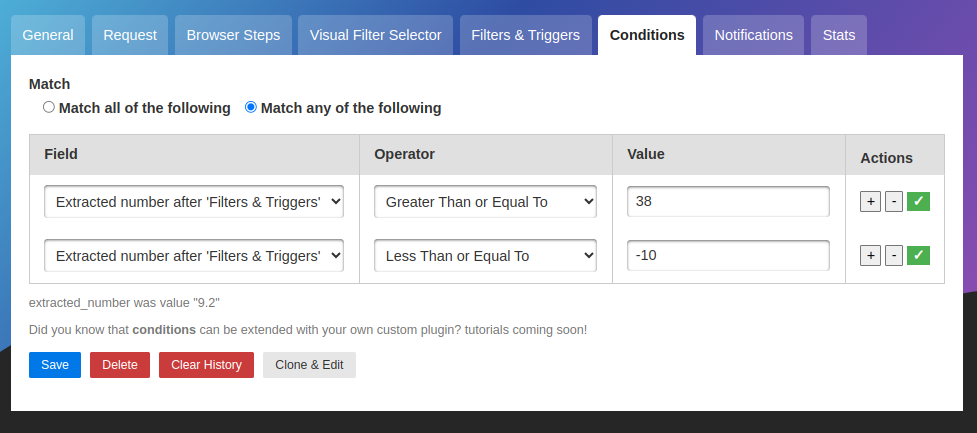
Conditional Monitoring allows you to set rules that determine when notifications should be sent. Instead of getting alerted for every change, you can filter notifications based on specific conditions - like price thresholds, keyword presence, or numeric values.
 ## What is Conditional Monitoring?
Conditional monitoring adds intelligent filtering to change detection. While change detection finds **what changed**, conditions determine **whether to notify** based on the changed content.
**How it works**
1. changedetection.io detects a change on the page
2. Conditions are evaluated against the new content
3. If conditions are met → Notification is sent ✅
4. If conditions are NOT met → Change is recorded, but no notification ❌
## When to Use Conditions
Only notify when price drops below $50 or rises above $200
Alert only when specific keywords appear or disappear
Notify when stock count, ratings, or other numbers meet criteria
Trigger when specific text exists or is removed from the page
## Setting Up Conditions
### Accessing Condition Rules
Click **Edit** on any watch
Scroll to the **"Conditions"** section near the bottom
Select **"Match all"** (AND) or **"Match any"** (OR)
Configure field, operator, and value for each rule
## Condition Components
Each condition rule has three parts:
### 1. Field (What to Check)
Select what content to evaluate:
| Field | Description | Example Use Case |
| - | - | - |
| **Text** | The extracted page content | Check if "Out of Stock" appears |
| **Number** | Numeric value extracted from page | Check if price \< 100 |
| **URL** | The watch URL | Conditional logic based on URL |
**Extract specific values first**
For best results, use **Extract text** filters to isolate the value you want to check:
1. Use filter: `Price: (\d+\.\d+)` to extract price
2. Then condition: Number \< 50
### 2. Operator (How to Compare)
Available operators:
#### Text Operators
| Operator | Description | Example |
| - | - | - |
| **Contains** | Text includes the value | Text contains "In Stock" |
| **Does not contain** | Text excludes the value | Text does not contain "Sold Out" |
| **Matches regex** | Text matches regular expression | Text matches `^Price: \$\d+` |
| **Equals** | Text exactly matches value | Text equals "Available" |
| **Does not equal** | Text doesn't match value | Text does not equal "Unavailable" |
#### Numeric Operators
| Operator | Description | Example |
| - | - | - |
| `>` (Greater than) | Number is larger than value | Number is greater than 100 |
| `<` (Less than) | Number is smaller than value | Number is less than 50 |
| `>=` (Greater or equal) | Number is at least value | Number is at least 10 |
| `<=` (Less or equal) | Number is at most value | Number is at most 500 |
| `==` (Equal) | Number exactly equals value | Number equals 0 |
| `!=` (Not equal) | Number doesn't equal value | Number does not equal -1 |
### 3. Value (What to Compare Against)
The value to compare the field against:
* **For text:** Enter the text/keyword/regex pattern
* **For numbers:** Enter the numeric value (integers or decimals)
* **Case sensitivity:** Text comparisons are case-insensitive by default
## Match Logic
Control how multiple conditions are evaluated:
**All conditions must be true** to send notification
**Example:**
```
Rule 1: Text contains "In Stock"
Rule 2: Number < 100
Match: ALL
Result: Notifies only when BOTH in stock AND price < $100
```
**Use for:** Strict filtering where all criteria must be met
**Any condition being true** will send notification
**Example:**
```
Rule 1: Text contains "Sale"
Rule 2: Text contains "Discount"
Rule 3: Number < 50
Match: ANY
Result: Notifies if on sale, discounted, OR price < $50
```
**Use for:** Flexible filtering with multiple trigger conditions
## Common Use Cases
### Price Drop Alert (Below Threshold)
**Goal:** Only notify when price drops below \$100
**Configuration:**
```
Conditions:
Field: Number
Operator: <
Value: 100
Match: ALL
```
**Setup:**
1. Use "Extract text" filter: `\$([0-9.]+)` to extract price
2. Add condition: Number \< 100
3. Save watch
**Result:** Notifications only when extracted price is less than \$100
### Price in Range (Between Two Values)
**Goal:** Notify when price is between $50 and $150
**Configuration:**
```
Conditions:
Rule 1:
Field: Number
Operator: >
Value: 50
Rule 2:
Field: Number
Operator: <
Value: 150
Match: ALL
```
**Result:** Notifies only when 50 \< price \< 150
### Keyword Presence (Text Contains)
**Goal:** Alert when "Hiring" or "Now Accepting Applications" appears
**Configuration:**
```
Conditions:
Rule 1:
Field: Text
Operator: Contains
Value: Hiring
Rule 2:
Field: Text
Operator: Contains
Value: Now Accepting Applications
Match: ANY
```
**Result:** Notifies if either phrase appears on the page
### Stock Count Monitoring
**Goal:** Alert when stock count drops below 10 units
**Configuration:**
```
Setup:
Extract text filter: Stock: (\d+) units
Conditions:
Field: Number
Operator: <
Value: 10
Match: ALL
```
**Result:** Notifies when stock count \< 10
### Restock Alert (Keyword Disappears)
**Goal:** Notify when "Out of Stock" is removed from page
**Configuration:**
```
Conditions:
Field: Text
Operator: Does not contain
Value: Out of Stock
Match: ALL
```
**Result:** Notifies when "Out of Stock" text is no longer present
### Rating Threshold
**Goal:** Alert when product rating rises above 4.5 stars
**Configuration:**
```
Setup:
Extract text filter: Rating: ([0-5]\.[0-9])
Conditions:
Field: Number
Operator: >
Value: 4.5
```
**Result:** Notifies when rating > 4.5
## Advanced Conditional Logic
### Multiple Keyword Detection (ALL)
**Scenario:** Notify only when page contains BOTH "Premium" AND "Discount"
```
Rule 1: Text contains "Premium"
Rule 2: Text contains "Discount"
Match: ALL
```
### Price Drop OR Keyword
**Scenario:** Alert if price \< \$50 OR "Sale" appears
```
Rule 1: Number < 50
Rule 2: Text contains "Sale"
Match: ANY
```
### Complex Price Condition (Outside Range)
**Scenario:** Notify when price drops below $20 OR rises above $100 (alert on extremes)
```
Rule 1: Number < 20
Rule 2: Number > 100
Match: ANY
```
### Regex Pattern Matching
**Scenario:** Alert when email address appears in specific format
```
Field: Text
Operator: Matches regex
Value: [a-zA-Z0-9._%+-]+@[a-zA-Z0-9.-]+\.[a-zA-Z]{2,}
Match: ALL
```
## Combining with Other Features
### Conditions + Restock Monitoring
**Scenario:** Monitor product, notify only when in stock AND price \< \$200
**Setup:**
1. Use "Restock & Price Detection" processor
2. Add conditions:
```
Rule 1: Text contains "In Stock"
Rule 2: Number < 200
Match: ALL
```
### Conditions + Browser Steps
**Scenario:** Login, navigate to account balance, alert if balance \< \$100
**Setup:**
1. Browser Steps: Login and navigate to balance page
2. Extract text: `Balance: \$([0-9.]+)`
3. Condition: Number \< 100
### Conditions + Visual Selector
**Scenario:** Select price element, notify only on price drop
**Setup:**
1. Visual Selector: Select price element
2. Extract text: `\$([0-9.]+)`
3. Store original price on first check
4. Condition: Number \< \[previous\_price]
**For price comparisons over time**
Use the built-in **Restock monitoring** feature instead of manual conditions. It automatically tracks price changes and has built-in thresholds.
## Best Practices
Use **Extract text** filters to isolate the exact value before applying conditions.
**Example:**
* Page shows: "Price: $49.99 (was $79.99)"
* Extract filter: `Price: \$([0-9.]+)`
* Extracted: `49.99`
* Condition: Number \< 50 ✅
Without extraction, the condition would check the entire text.
After setting up conditions:
1. Click "Check now" to run the watch
2. View the extracted content in the Preview tab
3. Verify conditions would evaluate correctly
4. Adjust extract filters or condition values as needed
Choose the most specific operator for your use case:
* **"Contains"** for flexible keyword matching
* **"Equals"** for exact text matching
* **"Matches regex"** for complex patterns
* **Numeric operators** for price/number comparisons
Complex multi-rule conditions can be hard to debug.
**Instead of:**
```
10 rules with complex regex patterns
```
**Try:**
```
2-3 clear rules with simple comparisons
Create multiple watches if needed
```
Use watch titles to indicate conditions:
* "Product X - Alert when \< \$50"
* "Job Board - Notify on 'Hiring' keyword"
* "Stock - Alert when count \< 10"
## Troubleshooting
### Condition Never Triggers
**Problem:** Condition checks the full page text, not the extracted value
**Solution:**
1. Add an "Extract text" filter to isolate the value
2. Test with "Check now" and view Preview tab
3. Verify the extracted value appears correctly
**Problem:** Using numeric operator on text, or vice versa
**Solution:**
* For prices/numbers: Use Field = **Number** and numeric operators (\< > ==)
* For keywords/text: Use Field = **Text** and text operators (contains, equals)
**Problem:** "Matches regex" condition doesn't match
**Solution:**
* Test regex pattern in a regex tester (regex101.com)
* Check for escaping issues (use `\\` for literal backslash)
* Verify the pattern matches the actual page content format
**Problem:** Using "Match ALL" when you need "Match ANY" or vice versa
**Solution:**
* **ALL:** All rules must be true (strict)
* **ANY:** At least one rule must be true (flexible)
Verify which logic matches your intent.
### Condition Always Triggers
**Possible causes:**
1. **Condition too broad:**
* "Text contains 'a'" will always match (most pages have the letter 'a')
* Make conditions more specific
2. **Number extraction failing:**
* If number can't be extracted, default value (0 or empty) may match condition
* Verify extraction is working
3. **Multiple values extracted:**
* If extraction finds multiple numbers, condition may check the first one
* Refine extraction regex to target exact value
### Notifications Still Send Despite Conditions
**Check:**
1. **Are conditions enabled?**
* Verify condition rules are configured and saved
2. **Is there a separate trigger text filter?**
* "Trigger text" (different feature) may override conditions
* Check if "Keyword triggers" field is set
3. **Global vs watch notifications:**
* Check if global notifications are sending (they ignore per-watch conditions)
* Configure conditions in both global and per-watch if needed
## Condition Examples by Scenario
### E-commerce Product Monitoring
```text Price Drop Below Budget theme={null}
Extract: \$([0-9.]+)
Condition:
Field: Number
Operator: <
Value: 50
```
```text Back in Stock theme={null}
Condition:
Field: Text
Operator: Contains
Value: Add to Cart
```
```text Free Shipping Available theme={null}
Condition:
Field: Text
Operator: Contains
Value: Free Shipping
```
### Job Board Monitoring
```text Senior Position Posted theme={null}
Condition:
Rule 1: Text contains "Senior"
Rule 2: Text contains "Engineer"
Match: ALL
```
```text Remote or Hybrid theme={null}
Condition:
Rule 1: Text contains "Remote"
Rule 2: Text contains "Hybrid"
Match: ANY
```
### Real Estate Listings
```text Price Drop theme={null}
Extract: Price: \$([0-9,]+)
Condition:
Field: Number
Operator: <
Value: 500000
```
```text Specific Features theme={null}
Condition:
Rule 1: Text contains "3 bedroom"
Rule 2: Text contains "2 bath"
Rule 3: Text contains "garage"
Match: ALL
```
### Stock/Inventory Tracking
```text Low Stock Alert theme={null}
Extract: In Stock: ([0-9]+)
Condition:
Field: Number
Operator: <
Value: 10
```
```text Restock Alert theme={null}
Condition:
Field: Number
Operator: >
Value: 0
```
## Conditions vs. Other Features
### Conditions vs. Trigger Text
| Feature | Purpose | Example |
| - | - | - |
| **Trigger Text** | Wait for specific text to appear before detecting ANY change | Wait for "Pre-order Available" then start monitoring |
| **Conditions** | Filter notifications based on content criteria | Only notify when price \< \$50 |
**Key difference:** Trigger text **delays** monitoring start. Conditions **filter** notifications.
### Conditions vs. Filters
| Feature | Purpose |
| - | - |
| **Filters** (CSS/XPath/Extract) | Control what content is **monitored** |
| **Conditions** | Control when **notifications** are sent |
**Use together:**
1. Filters extract the price: `$49.99`
2. Conditions decide whether to notify: `if price < 50`
## Related Features
Extract specific values to use in conditions
Built-in price and stock conditions
Wait for specific text before monitoring
## Next Steps
Create a price threshold condition on a test watch
Use Extract text filters to isolate values for conditions
Experiment with Match ALL vs Match ANY logic
Set up alerts to receive when conditions are met
This documentation is built and hosted on [Mintlify](https://mintlify.com), a developer documentation platform.
## What is Conditional Monitoring?
Conditional monitoring adds intelligent filtering to change detection. While change detection finds **what changed**, conditions determine **whether to notify** based on the changed content.
**How it works**
1. changedetection.io detects a change on the page
2. Conditions are evaluated against the new content
3. If conditions are met → Notification is sent ✅
4. If conditions are NOT met → Change is recorded, but no notification ❌
## When to Use Conditions
Only notify when price drops below $50 or rises above $200
Alert only when specific keywords appear or disappear
Notify when stock count, ratings, or other numbers meet criteria
Trigger when specific text exists or is removed from the page
## Setting Up Conditions
### Accessing Condition Rules
Click **Edit** on any watch
Scroll to the **"Conditions"** section near the bottom
Select **"Match all"** (AND) or **"Match any"** (OR)
Configure field, operator, and value for each rule
## Condition Components
Each condition rule has three parts:
### 1. Field (What to Check)
Select what content to evaluate:
| Field | Description | Example Use Case |
| - | - | - |
| **Text** | The extracted page content | Check if "Out of Stock" appears |
| **Number** | Numeric value extracted from page | Check if price \< 100 |
| **URL** | The watch URL | Conditional logic based on URL |
**Extract specific values first**
For best results, use **Extract text** filters to isolate the value you want to check:
1. Use filter: `Price: (\d+\.\d+)` to extract price
2. Then condition: Number \< 50
### 2. Operator (How to Compare)
Available operators:
#### Text Operators
| Operator | Description | Example |
| - | - | - |
| **Contains** | Text includes the value | Text contains "In Stock" |
| **Does not contain** | Text excludes the value | Text does not contain "Sold Out" |
| **Matches regex** | Text matches regular expression | Text matches `^Price: \$\d+` |
| **Equals** | Text exactly matches value | Text equals "Available" |
| **Does not equal** | Text doesn't match value | Text does not equal "Unavailable" |
#### Numeric Operators
| Operator | Description | Example |
| - | - | - |
| `>` (Greater than) | Number is larger than value | Number is greater than 100 |
| `<` (Less than) | Number is smaller than value | Number is less than 50 |
| `>=` (Greater or equal) | Number is at least value | Number is at least 10 |
| `<=` (Less or equal) | Number is at most value | Number is at most 500 |
| `==` (Equal) | Number exactly equals value | Number equals 0 |
| `!=` (Not equal) | Number doesn't equal value | Number does not equal -1 |
### 3. Value (What to Compare Against)
The value to compare the field against:
* **For text:** Enter the text/keyword/regex pattern
* **For numbers:** Enter the numeric value (integers or decimals)
* **Case sensitivity:** Text comparisons are case-insensitive by default
## Match Logic
Control how multiple conditions are evaluated:
**All conditions must be true** to send notification
**Example:**
```
Rule 1: Text contains "In Stock"
Rule 2: Number < 100
Match: ALL
Result: Notifies only when BOTH in stock AND price < $100
```
**Use for:** Strict filtering where all criteria must be met
**Any condition being true** will send notification
**Example:**
```
Rule 1: Text contains "Sale"
Rule 2: Text contains "Discount"
Rule 3: Number < 50
Match: ANY
Result: Notifies if on sale, discounted, OR price < $50
```
**Use for:** Flexible filtering with multiple trigger conditions
## Common Use Cases
### Price Drop Alert (Below Threshold)
**Goal:** Only notify when price drops below \$100
**Configuration:**
```
Conditions:
Field: Number
Operator: <
Value: 100
Match: ALL
```
**Setup:**
1. Use "Extract text" filter: `\$([0-9.]+)` to extract price
2. Add condition: Number \< 100
3. Save watch
**Result:** Notifications only when extracted price is less than \$100
### Price in Range (Between Two Values)
**Goal:** Notify when price is between $50 and $150
**Configuration:**
```
Conditions:
Rule 1:
Field: Number
Operator: >
Value: 50
Rule 2:
Field: Number
Operator: <
Value: 150
Match: ALL
```
**Result:** Notifies only when 50 \< price \< 150
### Keyword Presence (Text Contains)
**Goal:** Alert when "Hiring" or "Now Accepting Applications" appears
**Configuration:**
```
Conditions:
Rule 1:
Field: Text
Operator: Contains
Value: Hiring
Rule 2:
Field: Text
Operator: Contains
Value: Now Accepting Applications
Match: ANY
```
**Result:** Notifies if either phrase appears on the page
### Stock Count Monitoring
**Goal:** Alert when stock count drops below 10 units
**Configuration:**
```
Setup:
Extract text filter: Stock: (\d+) units
Conditions:
Field: Number
Operator: <
Value: 10
Match: ALL
```
**Result:** Notifies when stock count \< 10
### Restock Alert (Keyword Disappears)
**Goal:** Notify when "Out of Stock" is removed from page
**Configuration:**
```
Conditions:
Field: Text
Operator: Does not contain
Value: Out of Stock
Match: ALL
```
**Result:** Notifies when "Out of Stock" text is no longer present
### Rating Threshold
**Goal:** Alert when product rating rises above 4.5 stars
**Configuration:**
```
Setup:
Extract text filter: Rating: ([0-5]\.[0-9])
Conditions:
Field: Number
Operator: >
Value: 4.5
```
**Result:** Notifies when rating > 4.5
## Advanced Conditional Logic
### Multiple Keyword Detection (ALL)
**Scenario:** Notify only when page contains BOTH "Premium" AND "Discount"
```
Rule 1: Text contains "Premium"
Rule 2: Text contains "Discount"
Match: ALL
```
### Price Drop OR Keyword
**Scenario:** Alert if price \< \$50 OR "Sale" appears
```
Rule 1: Number < 50
Rule 2: Text contains "Sale"
Match: ANY
```
### Complex Price Condition (Outside Range)
**Scenario:** Notify when price drops below $20 OR rises above $100 (alert on extremes)
```
Rule 1: Number < 20
Rule 2: Number > 100
Match: ANY
```
### Regex Pattern Matching
**Scenario:** Alert when email address appears in specific format
```
Field: Text
Operator: Matches regex
Value: [a-zA-Z0-9._%+-]+@[a-zA-Z0-9.-]+\.[a-zA-Z]{2,}
Match: ALL
```
## Combining with Other Features
### Conditions + Restock Monitoring
**Scenario:** Monitor product, notify only when in stock AND price \< \$200
**Setup:**
1. Use "Restock & Price Detection" processor
2. Add conditions:
```
Rule 1: Text contains "In Stock"
Rule 2: Number < 200
Match: ALL
```
### Conditions + Browser Steps
**Scenario:** Login, navigate to account balance, alert if balance \< \$100
**Setup:**
1. Browser Steps: Login and navigate to balance page
2. Extract text: `Balance: \$([0-9.]+)`
3. Condition: Number \< 100
### Conditions + Visual Selector
**Scenario:** Select price element, notify only on price drop
**Setup:**
1. Visual Selector: Select price element
2. Extract text: `\$([0-9.]+)`
3. Store original price on first check
4. Condition: Number \< \[previous\_price]
**For price comparisons over time**
Use the built-in **Restock monitoring** feature instead of manual conditions. It automatically tracks price changes and has built-in thresholds.
## Best Practices
Use **Extract text** filters to isolate the exact value before applying conditions.
**Example:**
* Page shows: "Price: $49.99 (was $79.99)"
* Extract filter: `Price: \$([0-9.]+)`
* Extracted: `49.99`
* Condition: Number \< 50 ✅
Without extraction, the condition would check the entire text.
After setting up conditions:
1. Click "Check now" to run the watch
2. View the extracted content in the Preview tab
3. Verify conditions would evaluate correctly
4. Adjust extract filters or condition values as needed
Choose the most specific operator for your use case:
* **"Contains"** for flexible keyword matching
* **"Equals"** for exact text matching
* **"Matches regex"** for complex patterns
* **Numeric operators** for price/number comparisons
Complex multi-rule conditions can be hard to debug.
**Instead of:**
```
10 rules with complex regex patterns
```
**Try:**
```
2-3 clear rules with simple comparisons
Create multiple watches if needed
```
Use watch titles to indicate conditions:
* "Product X - Alert when \< \$50"
* "Job Board - Notify on 'Hiring' keyword"
* "Stock - Alert when count \< 10"
## Troubleshooting
### Condition Never Triggers
**Problem:** Condition checks the full page text, not the extracted value
**Solution:**
1. Add an "Extract text" filter to isolate the value
2. Test with "Check now" and view Preview tab
3. Verify the extracted value appears correctly
**Problem:** Using numeric operator on text, or vice versa
**Solution:**
* For prices/numbers: Use Field = **Number** and numeric operators (\< > ==)
* For keywords/text: Use Field = **Text** and text operators (contains, equals)
**Problem:** "Matches regex" condition doesn't match
**Solution:**
* Test regex pattern in a regex tester (regex101.com)
* Check for escaping issues (use `\\` for literal backslash)
* Verify the pattern matches the actual page content format
**Problem:** Using "Match ALL" when you need "Match ANY" or vice versa
**Solution:**
* **ALL:** All rules must be true (strict)
* **ANY:** At least one rule must be true (flexible)
Verify which logic matches your intent.
### Condition Always Triggers
**Possible causes:**
1. **Condition too broad:**
* "Text contains 'a'" will always match (most pages have the letter 'a')
* Make conditions more specific
2. **Number extraction failing:**
* If number can't be extracted, default value (0 or empty) may match condition
* Verify extraction is working
3. **Multiple values extracted:**
* If extraction finds multiple numbers, condition may check the first one
* Refine extraction regex to target exact value
### Notifications Still Send Despite Conditions
**Check:**
1. **Are conditions enabled?**
* Verify condition rules are configured and saved
2. **Is there a separate trigger text filter?**
* "Trigger text" (different feature) may override conditions
* Check if "Keyword triggers" field is set
3. **Global vs watch notifications:**
* Check if global notifications are sending (they ignore per-watch conditions)
* Configure conditions in both global and per-watch if needed
## Condition Examples by Scenario
### E-commerce Product Monitoring
```text Price Drop Below Budget theme={null}
Extract: \$([0-9.]+)
Condition:
Field: Number
Operator: <
Value: 50
```
```text Back in Stock theme={null}
Condition:
Field: Text
Operator: Contains
Value: Add to Cart
```
```text Free Shipping Available theme={null}
Condition:
Field: Text
Operator: Contains
Value: Free Shipping
```
### Job Board Monitoring
```text Senior Position Posted theme={null}
Condition:
Rule 1: Text contains "Senior"
Rule 2: Text contains "Engineer"
Match: ALL
```
```text Remote or Hybrid theme={null}
Condition:
Rule 1: Text contains "Remote"
Rule 2: Text contains "Hybrid"
Match: ANY
```
### Real Estate Listings
```text Price Drop theme={null}
Extract: Price: \$([0-9,]+)
Condition:
Field: Number
Operator: <
Value: 500000
```
```text Specific Features theme={null}
Condition:
Rule 1: Text contains "3 bedroom"
Rule 2: Text contains "2 bath"
Rule 3: Text contains "garage"
Match: ALL
```
### Stock/Inventory Tracking
```text Low Stock Alert theme={null}
Extract: In Stock: ([0-9]+)
Condition:
Field: Number
Operator: <
Value: 10
```
```text Restock Alert theme={null}
Condition:
Field: Number
Operator: >
Value: 0
```
## Conditions vs. Other Features
### Conditions vs. Trigger Text
| Feature | Purpose | Example |
| - | - | - |
| **Trigger Text** | Wait for specific text to appear before detecting ANY change | Wait for "Pre-order Available" then start monitoring |
| **Conditions** | Filter notifications based on content criteria | Only notify when price \< \$50 |
**Key difference:** Trigger text **delays** monitoring start. Conditions **filter** notifications.
### Conditions vs. Filters
| Feature | Purpose |
| - | - |
| **Filters** (CSS/XPath/Extract) | Control what content is **monitored** |
| **Conditions** | Control when **notifications** are sent |
**Use together:**
1. Filters extract the price: `$49.99`
2. Conditions decide whether to notify: `if price < 50`
## Related Features
Extract specific values to use in conditions
Built-in price and stock conditions
Wait for specific text before monitoring
## Next Steps
Create a price threshold condition on a test watch
Use Extract text filters to isolate values for conditions
Experiment with Match ALL vs Match ANY logic
Set up alerts to receive when conditions are met
This documentation is built and hosted on [Mintlify](https://mintlify.com), a developer documentation platform.